BlogGuide
One Pager Template Google Docs: Build It in Pages Format
A one pager template for Google Docs, set up step by step: why it must be in pages format, the table that holds the layout, and how to export a PDF.

By MakeOnepagers Team
Updated · 6 min read
A one pager template in Google Docs is a single-sheet document with fixed sections that you copy and fill in: a title, a one-line summary, the key facts, the details, and a contact or next step. The top results for "one pager template google docs" on 12 October 2026 were a gallery of template names and a public Google Doc with seven bare headings. Neither says how to set Docs up so the result stays on one sheet. So we read Google's own Docs Editors Help, and the first step matters most: in pageless format, Docs turns off columns, paper size and margins. Below: the setup, a section table to copy, and the checks before you send it.
One‑Pager examples
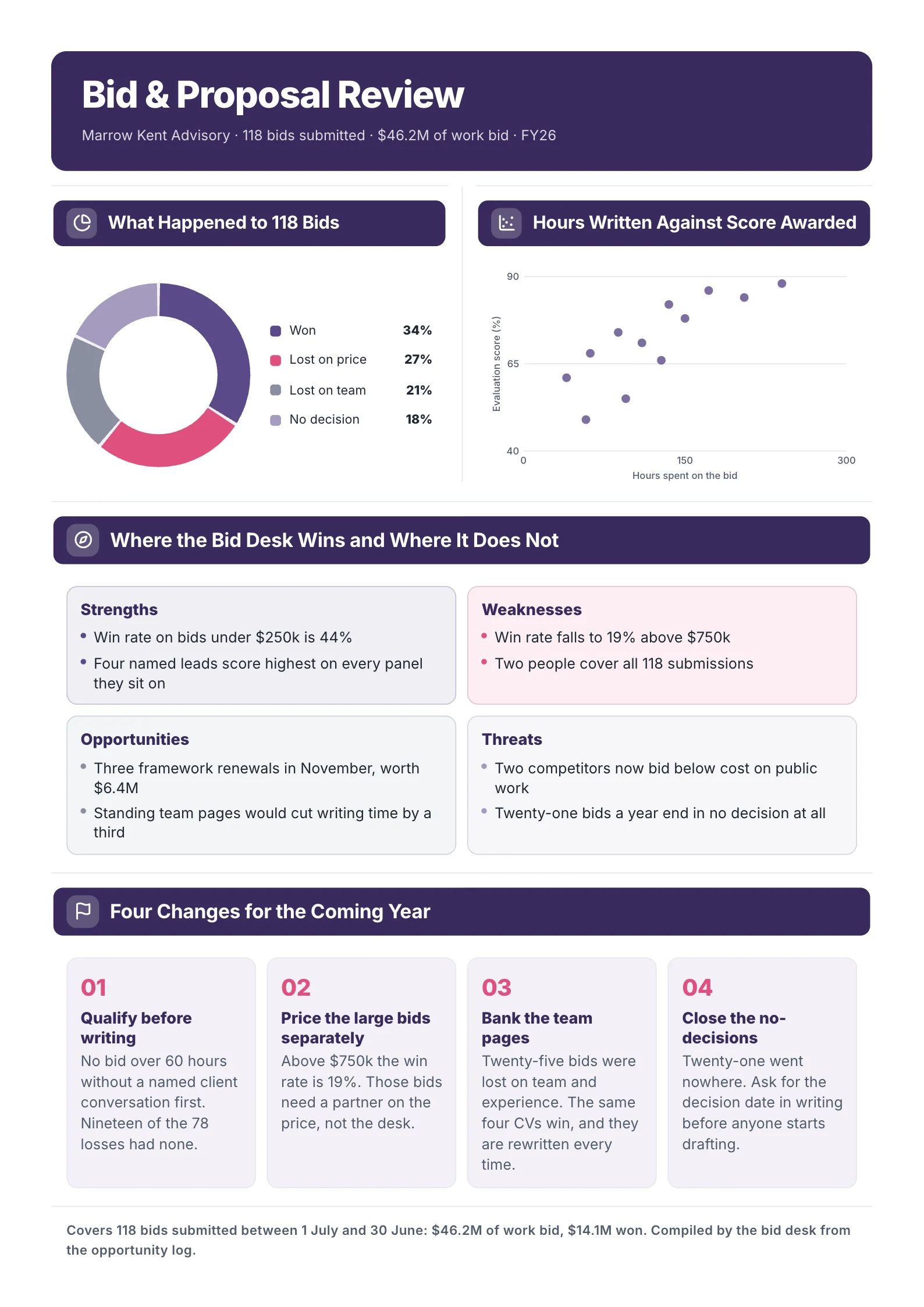
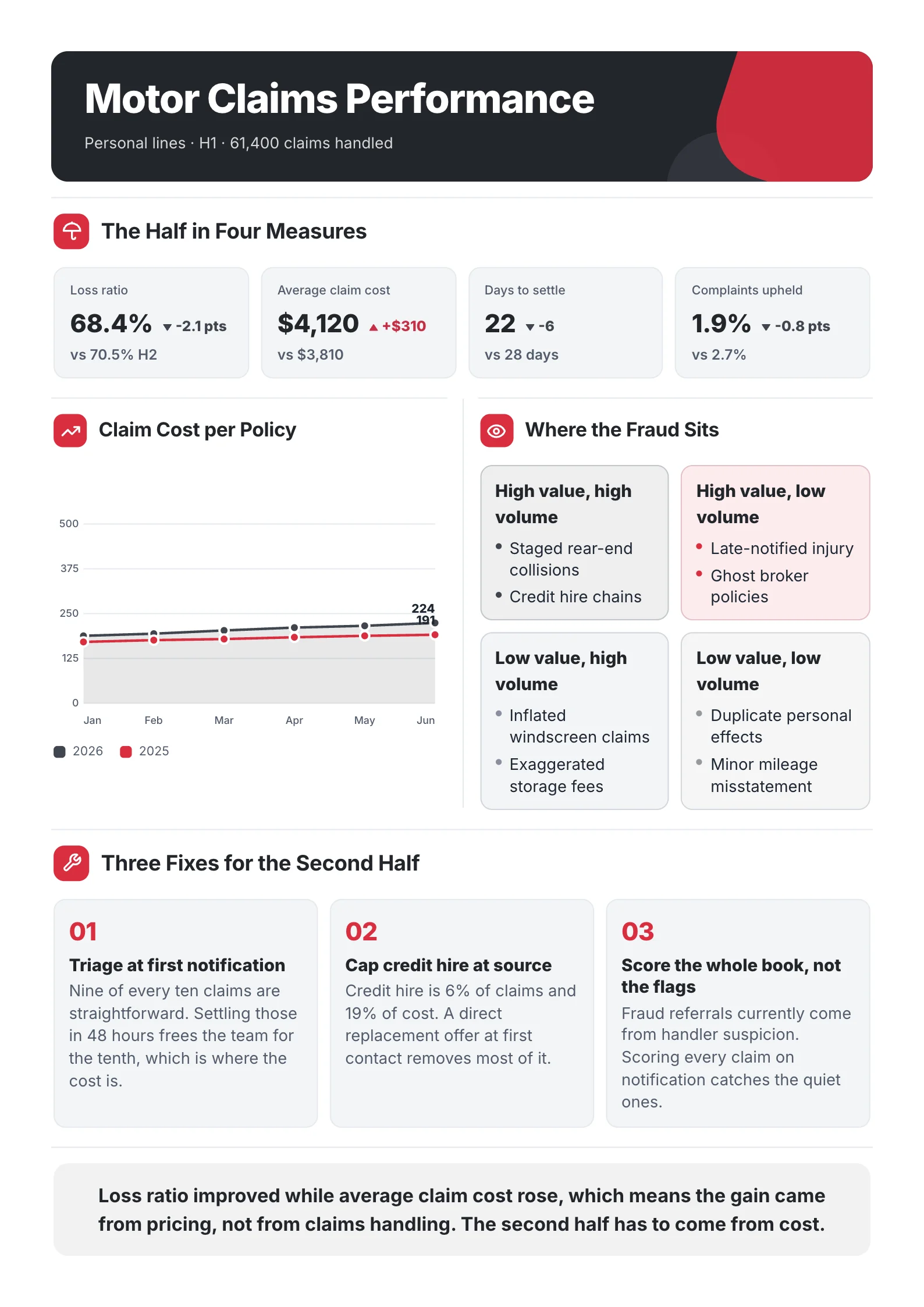
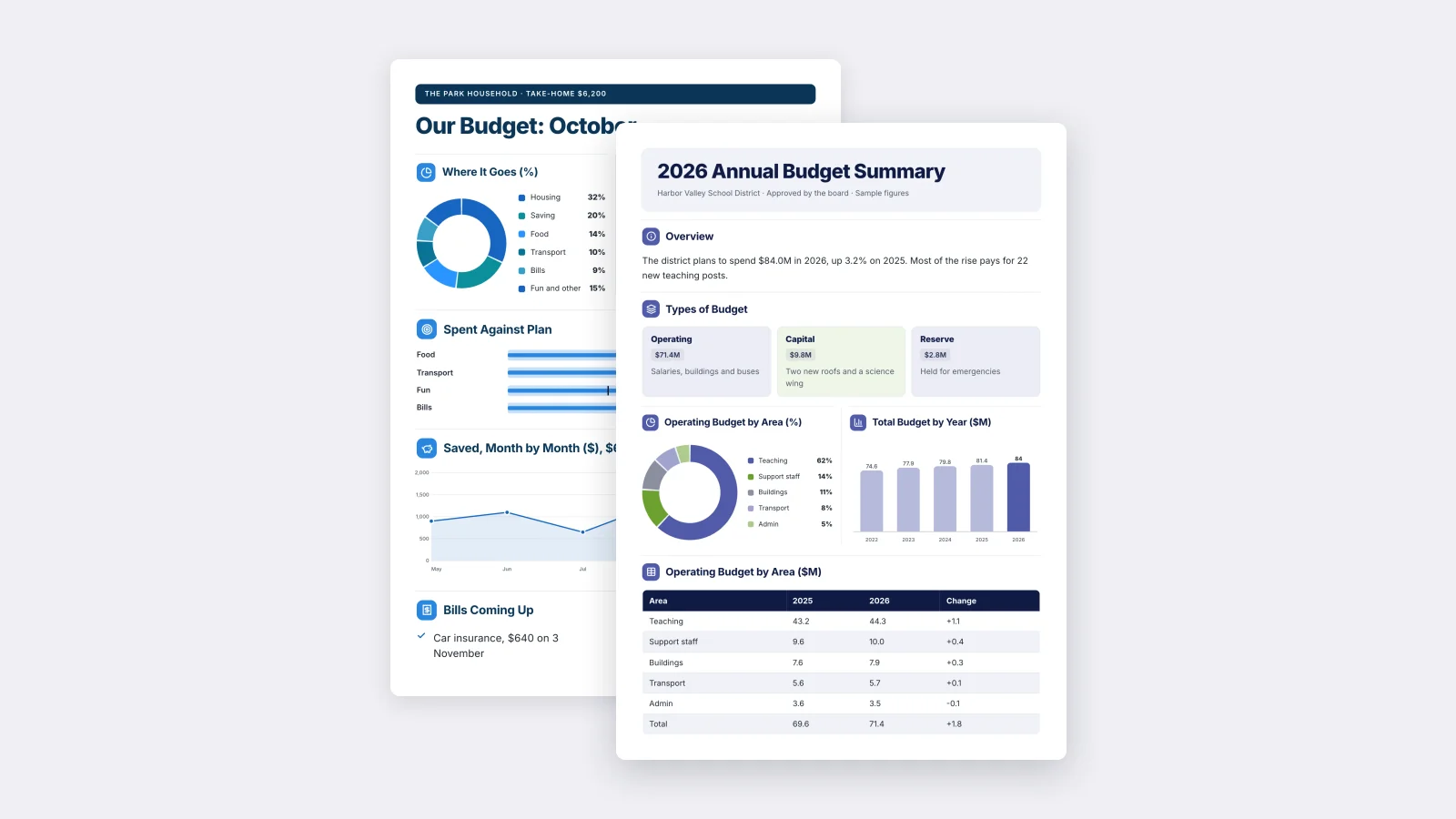
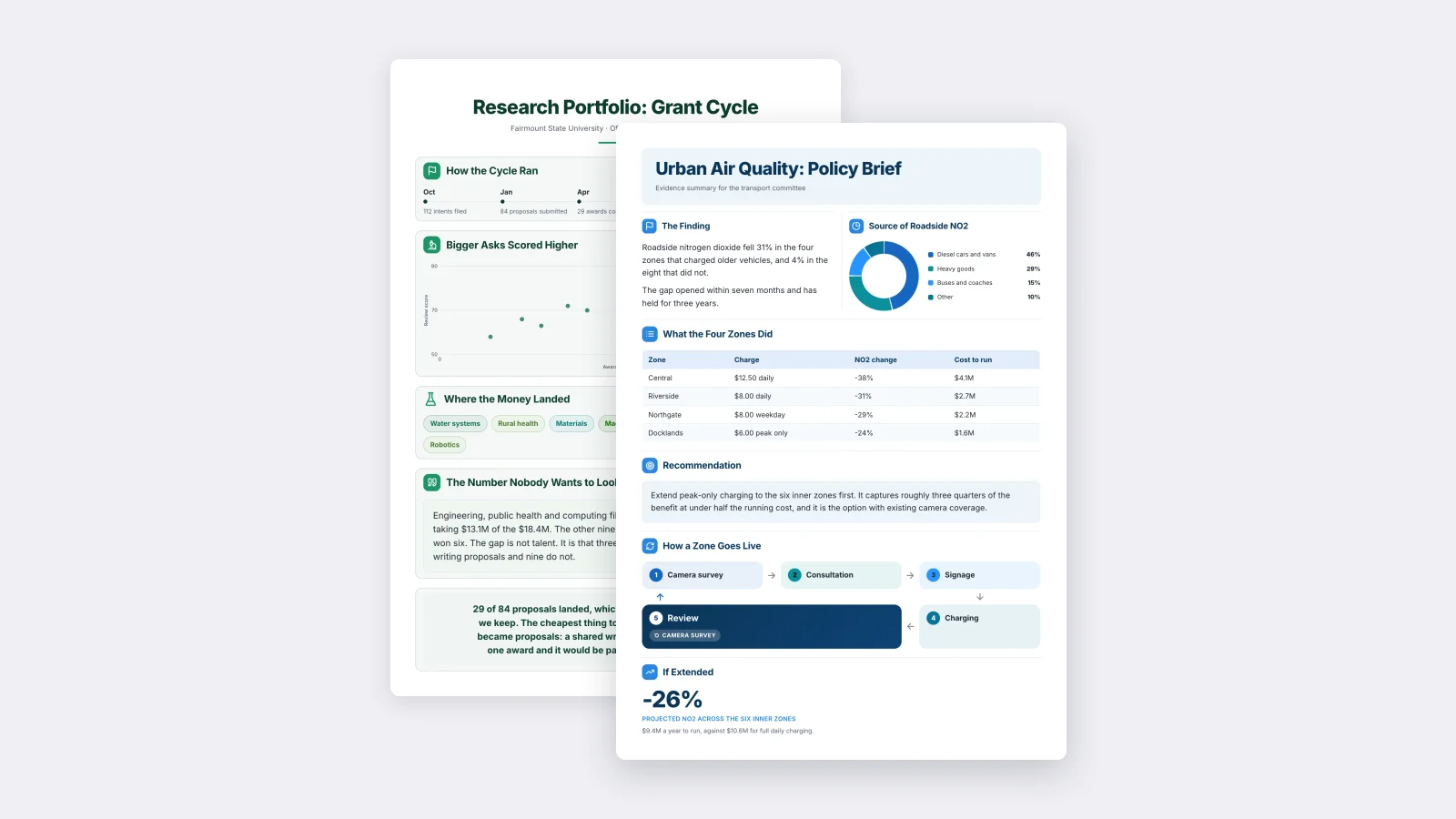
Real One-Pagers made with MakeOnepagers. Open any one to edit it as your own.
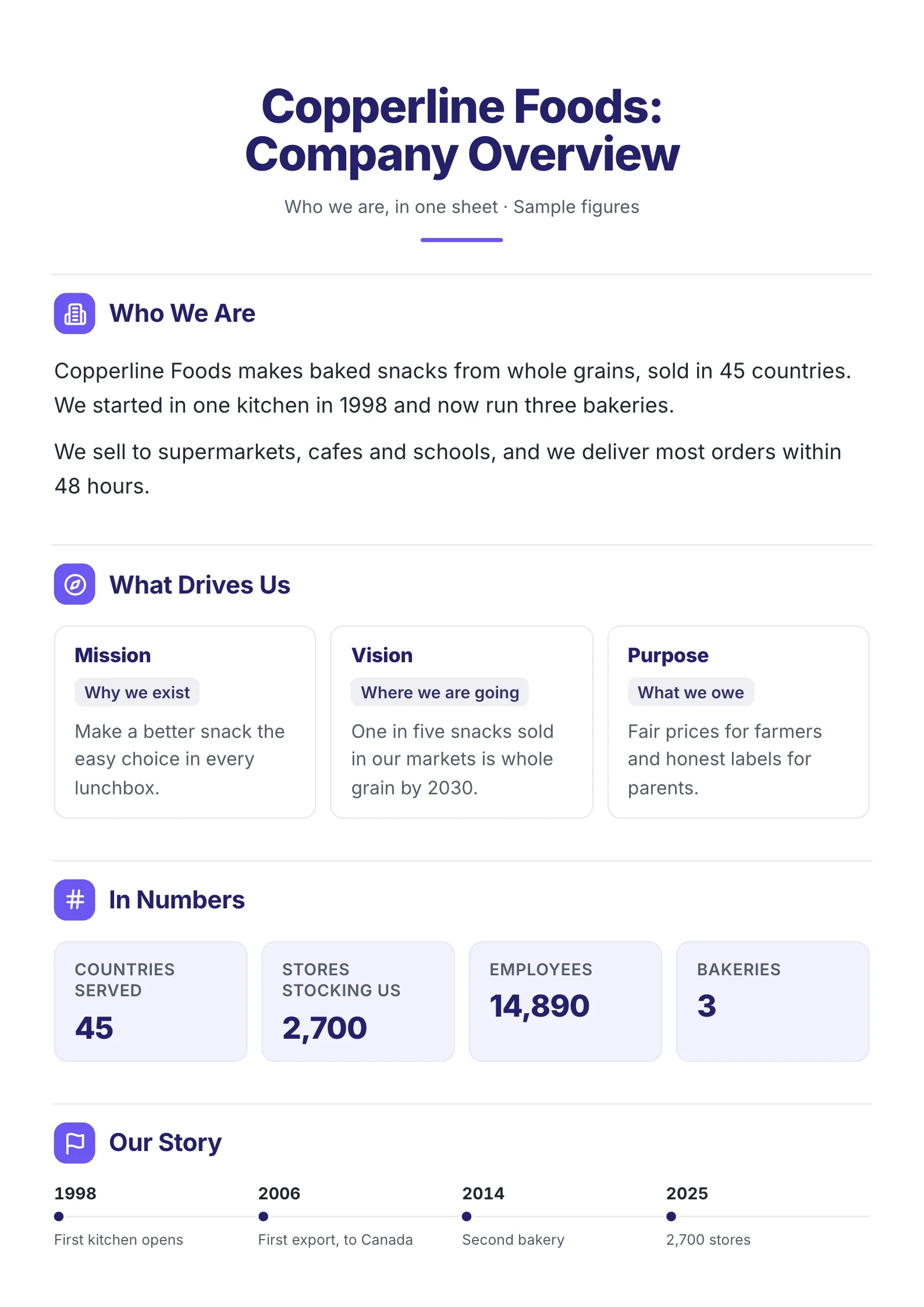 Company OverviewEdit for free(opens in a new tab)
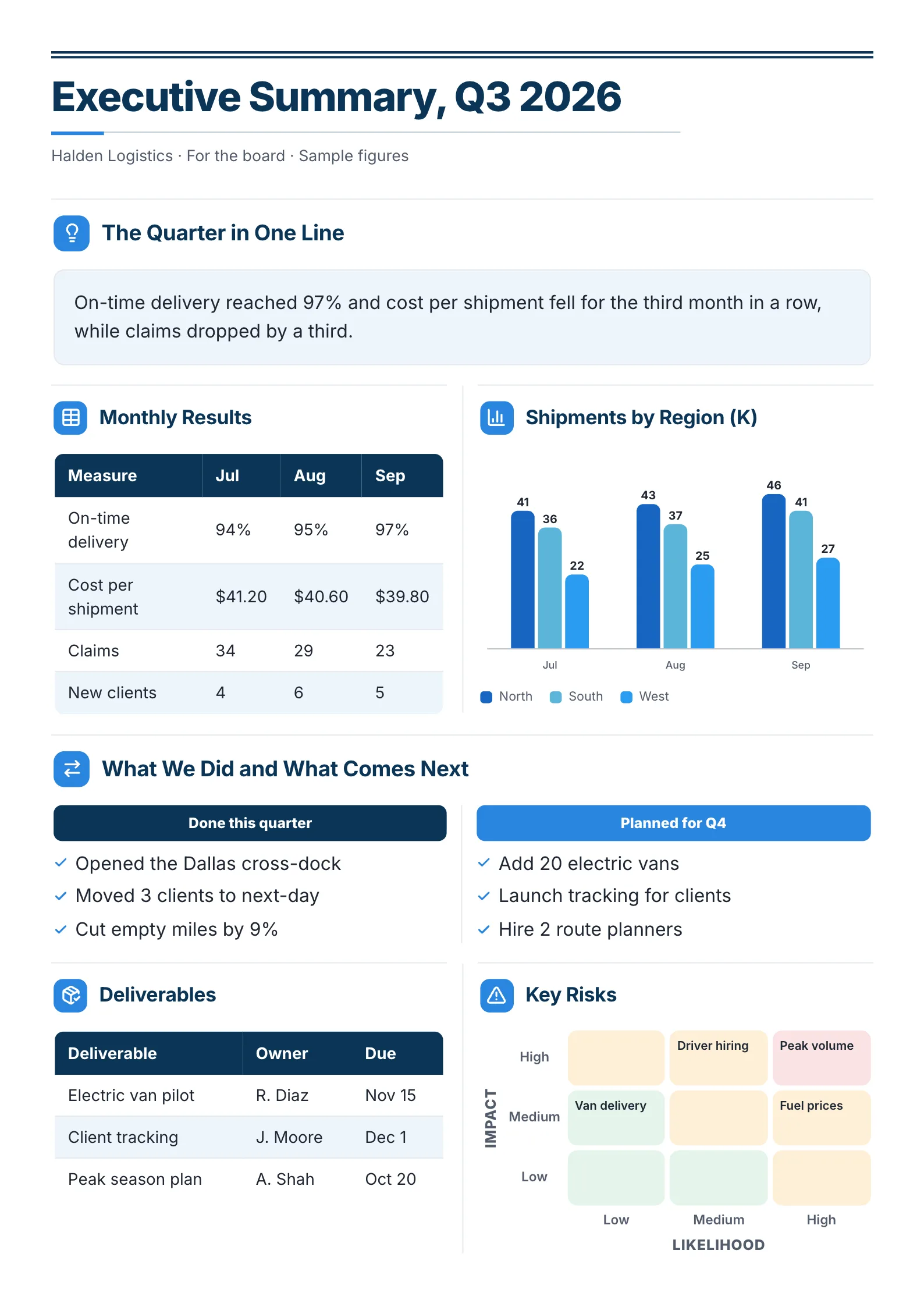 Business Executive SummaryEdit for free(opens in a new tab)
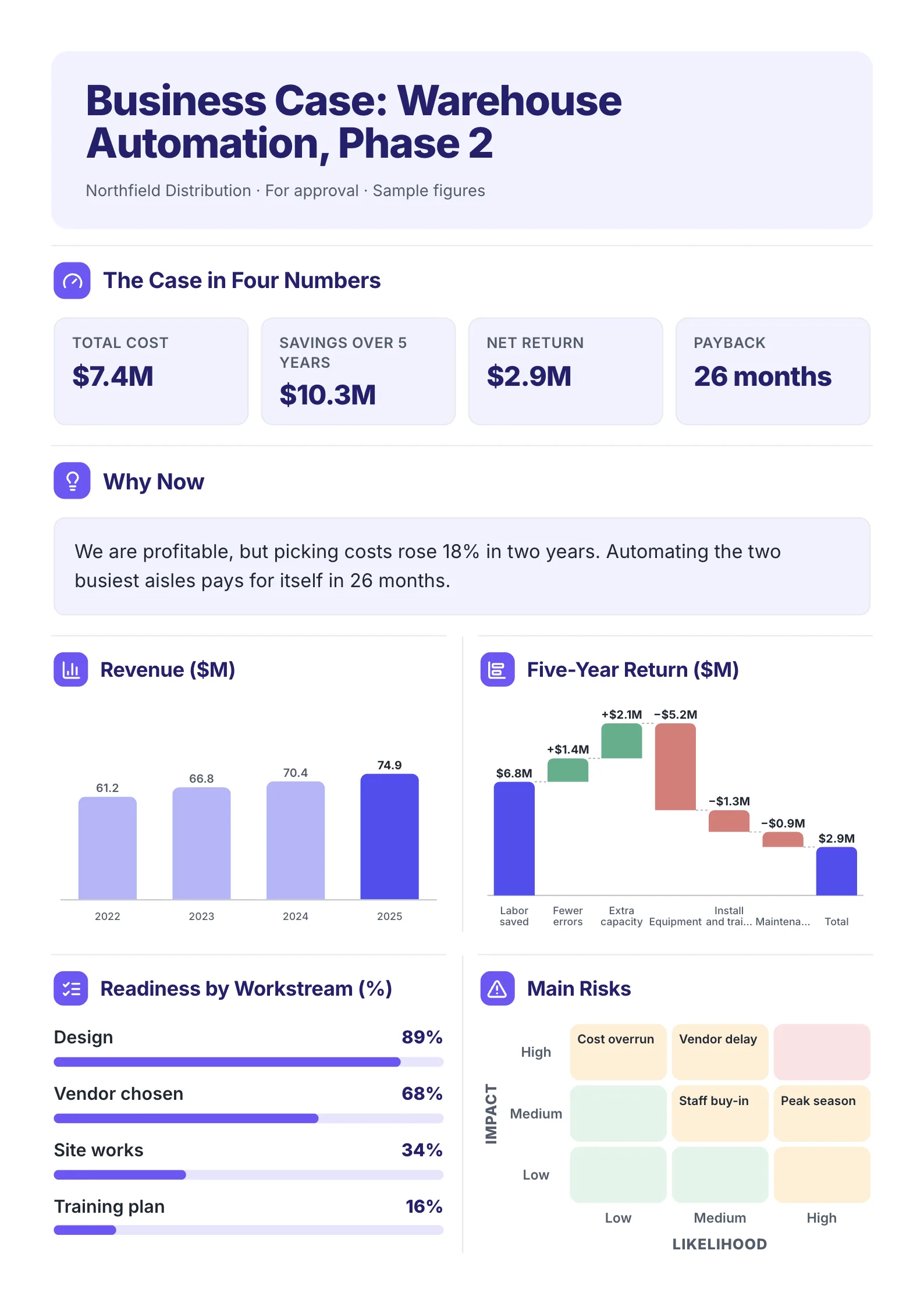 Project Business CaseEdit for free(opens in a new tab)
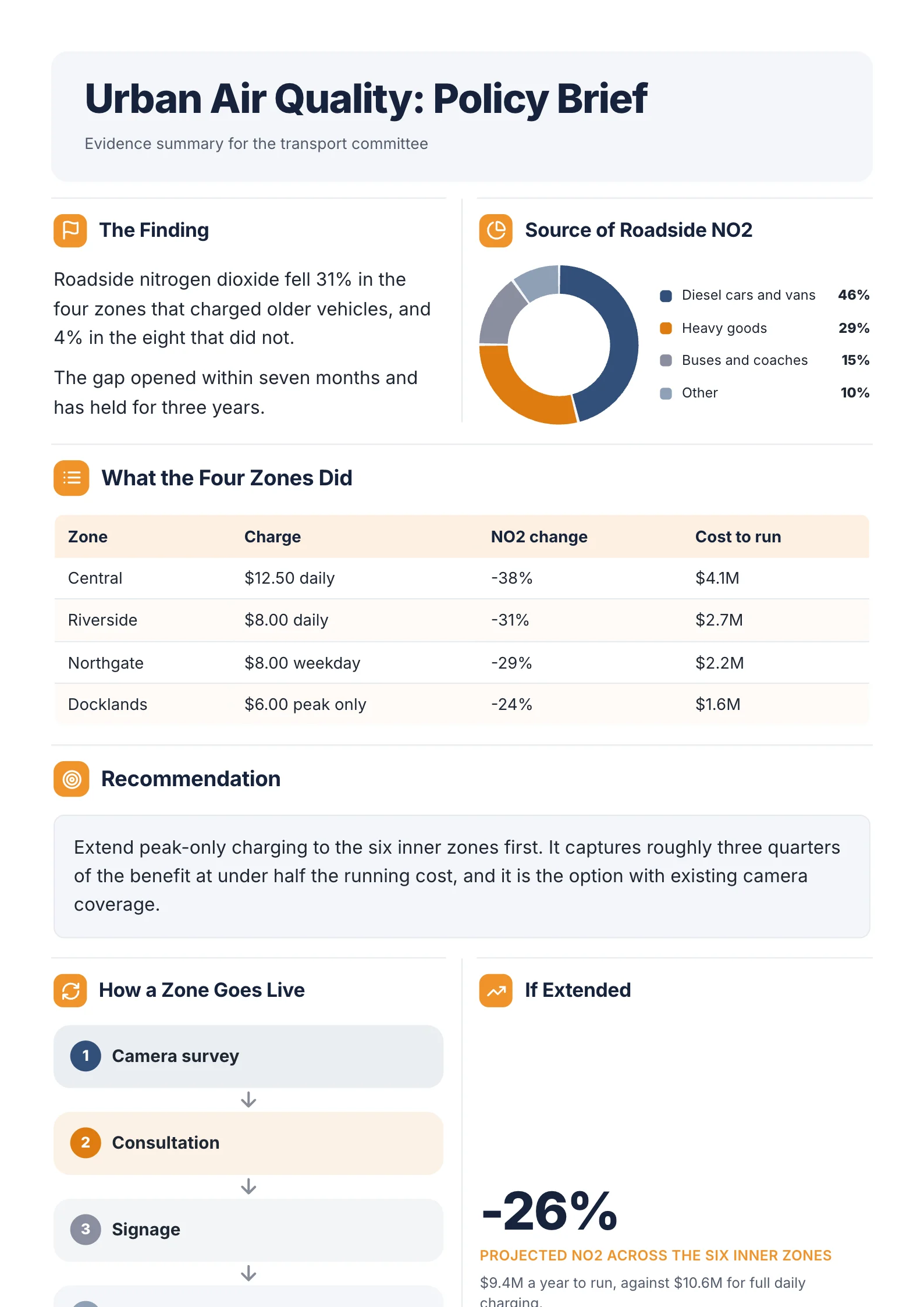 Policy BriefEdit for free(opens in a new tab)
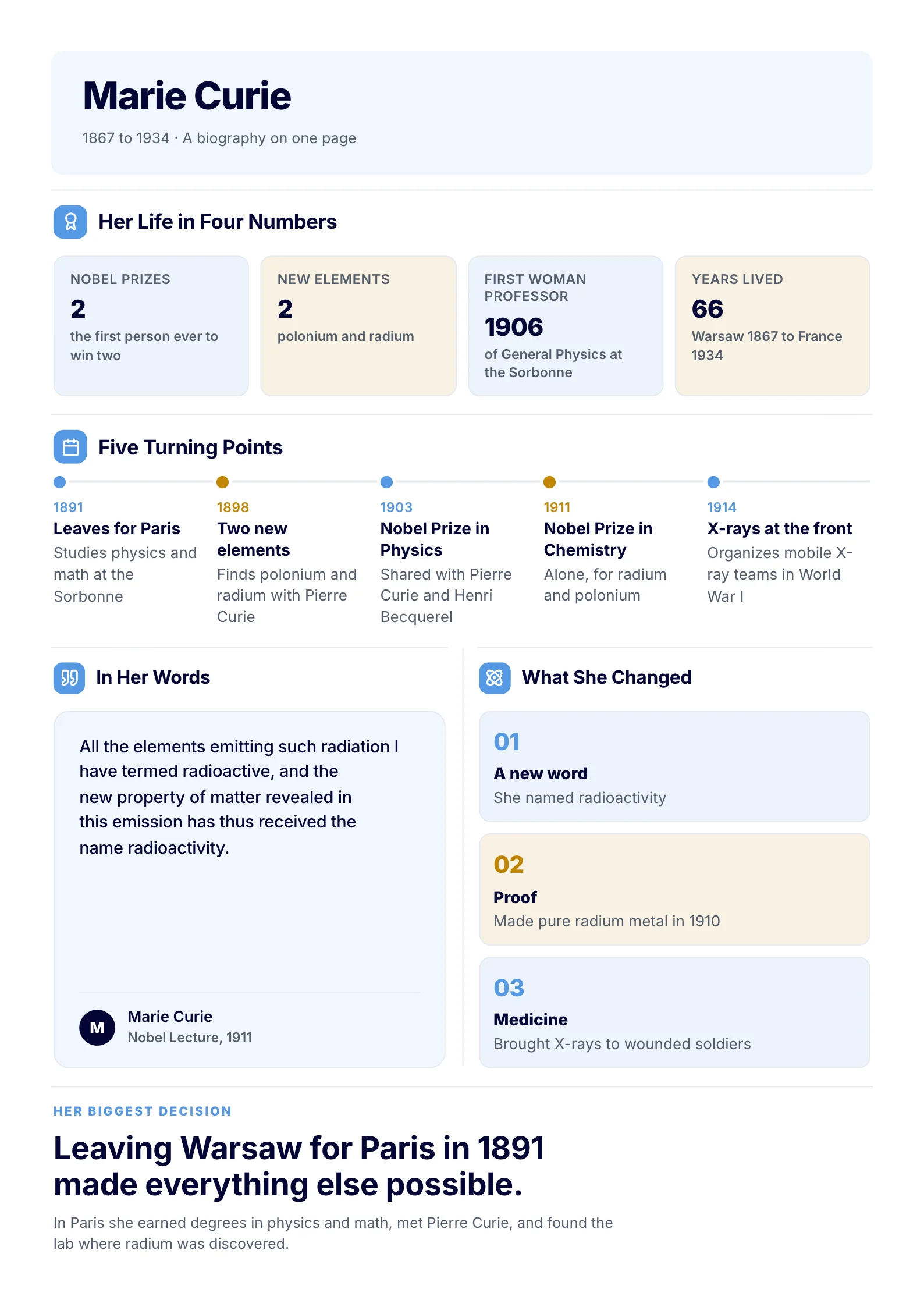 BiographyEdit for free(opens in a new tab)
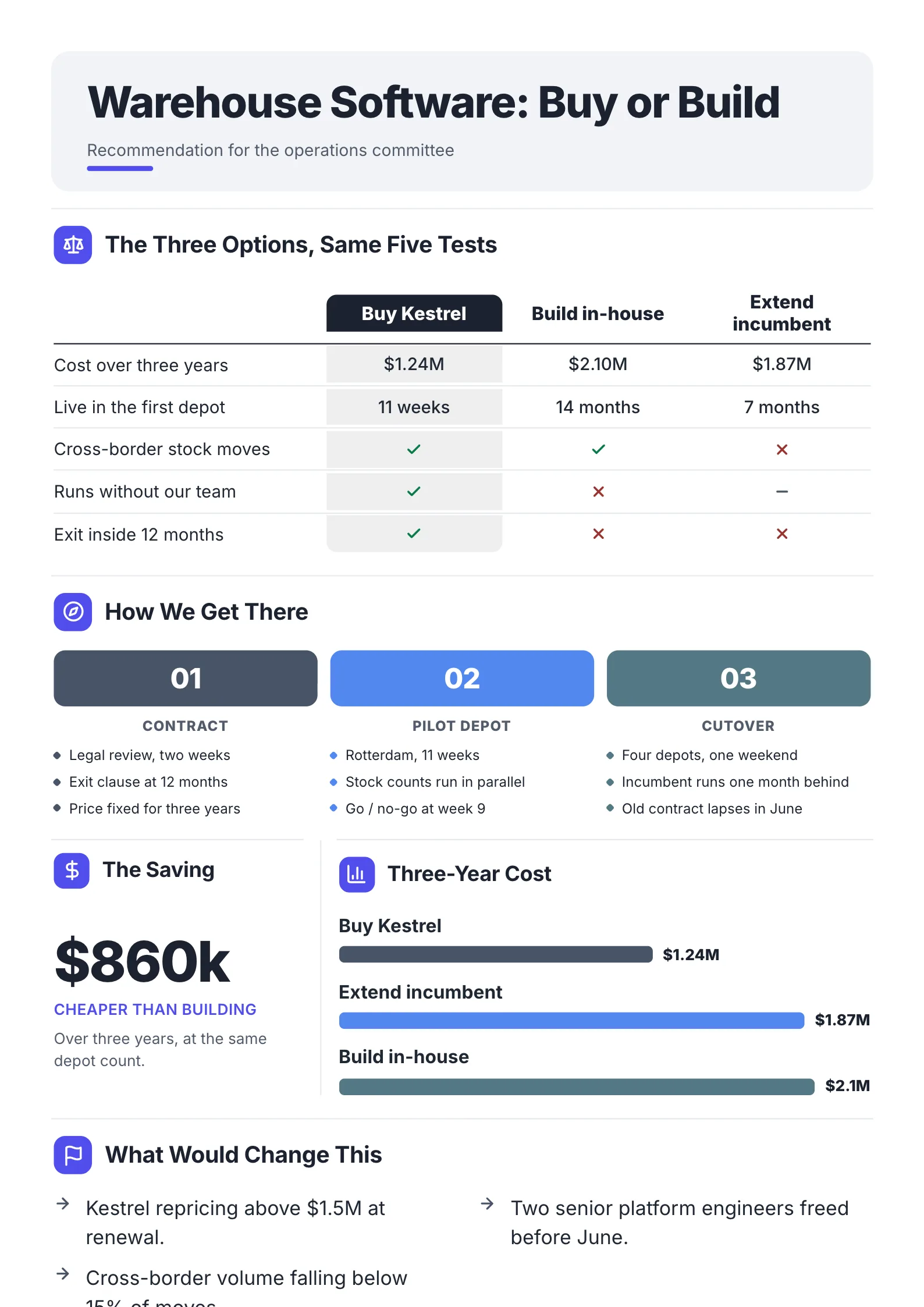 Buy vs Build DecisionEdit for free(opens in a new tab)
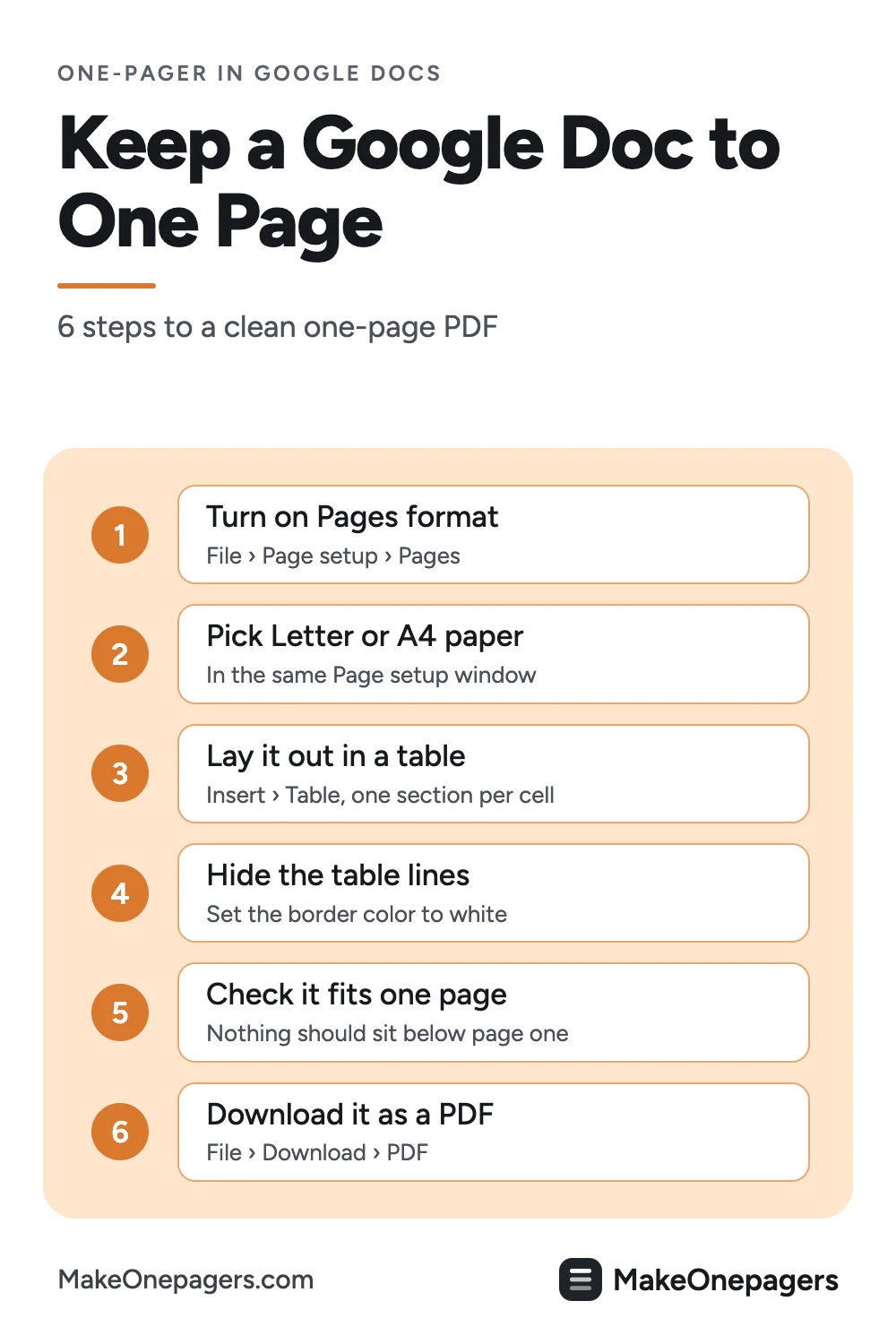
Step 1: switch the document to pages format
Google Docs has two formats, according to its help pages:
| Format | What it does | What it means for a one pager |
|---|---|---|
| Pages | Page breaks, headers and footers, page numbers, page size and margins | You can see where page one ends |
| Pageless | One continuous scroll; images and line breaks adjust to the screen | No columns, no page size, no margins, no page break to aim at |
Google's help says that in a pageless document you cannot add columns, page numbers, or headers and footers, and that page size, margins and orientation are not available.
To switch: File, then Page setup, then select Pages at the top, then OK. Or click Format, then Switch to Pages format. Click "Set as default" if you want every new document to start that way.
Step 2: set the paper size and margins
In the same File, then Page setup window, with Pages selected:
- Paper size: Letter for the US, A4 for most other countries. Use the size your reader will print on.
- Orientation: portrait for most one pagers.
- Margins: smaller margins give you more room, but keep enough white space for a printer and for the reader's eye.
Step 3: build the layout with a table
A one pager needs side-by-side sections, and in Google Docs the most controllable way to place them is a table. Google's help says: Insert, then Table, then choose rows and columns, up to 20 by 20 cells.
A simple one pager layout:
| Row | Cells | What goes in it |
|---|---|---|
| 1 | 1 | Title and one-line summary |
| 2 | 2 | The key numbers on the left, the problem or context on the right |
| 3 | 1 | The details: a short table, steps or a timeline |
| 4 | 2 | What happens next on the left, risks or asks on the right |
| 5 | 1 | Contact strip: name, email, website |
Insert a 5 by 2 table, then merge the two cells in rows 1, 3 and 5: highlight both cells, right-click and choose Merge cells. When you are done, select every cell and use the toolbar's border color to set the border to white, so the grid disappears and the sections remain.
For text that should flow from one column into the next, use Format, then Columns, instead. Google's help also lists a column break under Insert, then Break.
Step 4: fill in the sections
Most one pagers, whatever the subject, carry the same parts:
| Section | What to write | Length |
|---|---|---|
| Title | What this is, in plain words | One line |
| Summary | The single point you want remembered | One or two sentences |
| Key numbers | Three or four facts, each with a label | One line each |
| Context | The problem, the background or the goal | Three or four lines |
| Details | The plan, the steps, the budget or the timeline | A short table or list |
| Next step | What you want the reader to do | One line |
| Contact | A named person and how to reach them | One line |
The public project one-pager we read in the results uses a similar outline for software projects: project overview, goal, user stories, resources with who and how long, detailed requirements and out of scope. Rename the sections to fit your subject.
Step 5: check it fits on one sheet
- Look for the first page break. In pages format, Docs shows where page one ends. Nothing should sit below it.
- Print preview. File, then Print. Google's help notes that a pageless document prints differently from how it looks on screen, which is another reason to stay in pages format.
- Cut, do not shrink. If it runs over, remove a sentence or a row before you make the type smaller.
Step 6: share it as a PDF
File, then Download, then choose PDF. A PDF keeps the layout the same on every screen and printer. To reuse the template, open it and click File, then Make a copy, so the original stays clean.
What a finished one pager looks like
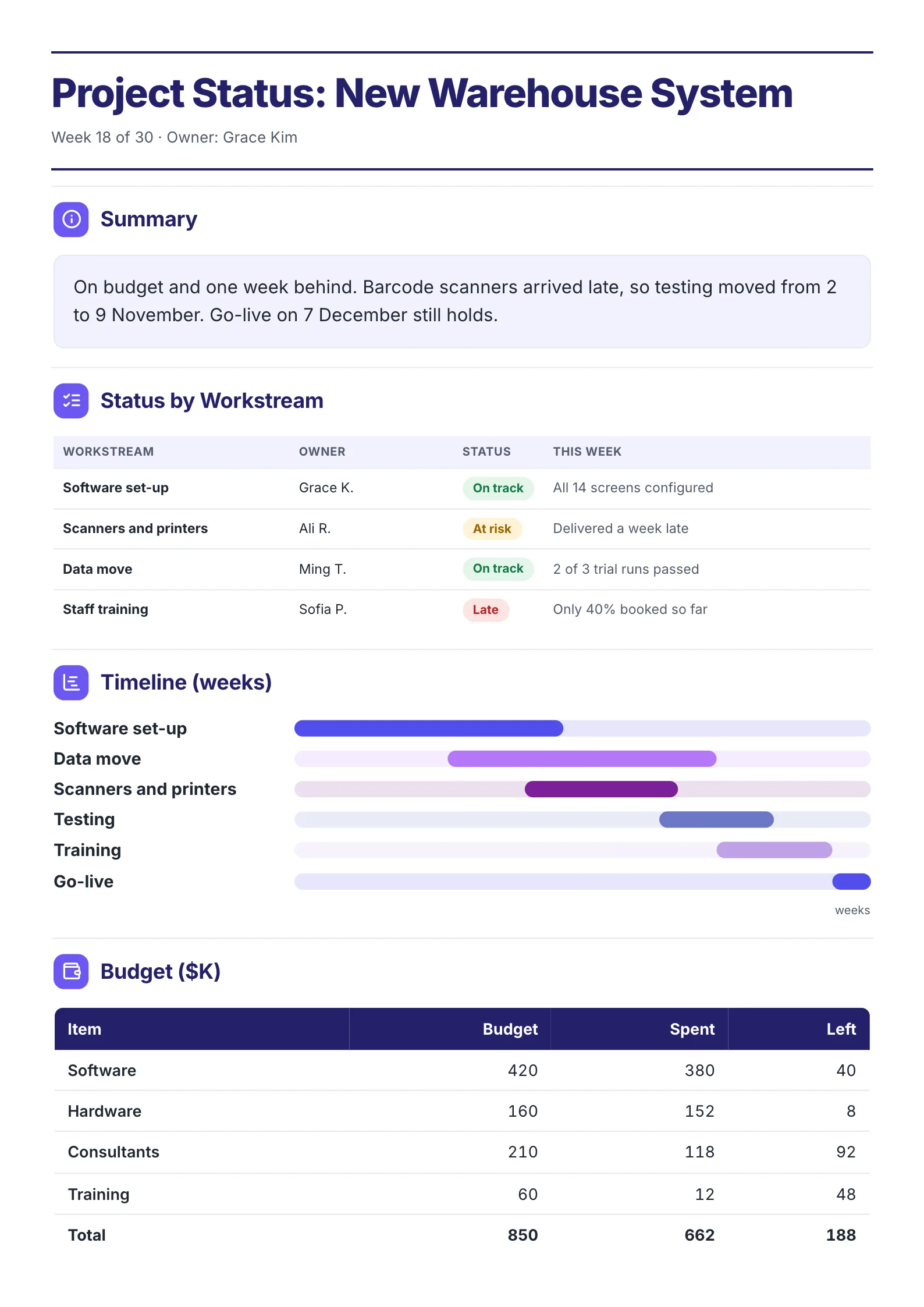
The same sections, laid out as a finished One-Pager from our library:
 Edit this template
A sample project status One-Pager: a summary line, a status table, a timeline and a budget, all on one sheet.
What to copy into your Google Doc:
- A one-line summary right under the title, with the date that matters.
- A table with a status column, one row per workstream.
- A budget table with three columns: budget, spent and left.
Open it: project status summary template. If building the table in Docs takes longer than writing the content, drop your notes into the free AI One-Pager generator for a finished layout, then check every line.
Google Docs one pager mistakes
| Mistake | Fix |
|---|---|
| Built in pageless format | File, then Page setup, then Pages |
| Layout made with spaces and tabs | A table with hidden borders |
| Shrinking the type to fit | Cut a row or a sentence |
| Visible table grid | Set the border color to white |
| Sent as a Docs link that changes | Download a PDF |
| Editing the master copy | File, then Make a copy |
Make your one pager in Google Docs
Switch to pages format, set your paper size, insert a 5 by 2 table and merge rows 1, 3 and 5, then fill in the sections table above. For a finished layout to copy, open the project status summary template.
Frequently asked questions
Does Google Docs have a one pager template?
You can start from any document and set it up as above, or make a copy of a one pager someone has shared publicly. The structure that matters is pages format, a table for the layout, and fixed sections.
Why can't I add columns in Google Docs?
Your document is probably in pageless format. Google's help says columns are not available in pageless documents. Switch with Format, then Switch to Pages format.
How do I keep a Google Doc to one page?
Use pages format so you can see where the first sheet ends, and cut content until nothing sits below it. Check with File, then Print before you send it.
How do I make two columns in a Google Docs one pager?
Use Format, then Columns for text that flows, or a two-column table row for sections that sit side by side.
What is the best format to send a one pager from Google Docs?
A PDF, from File, then Download. It keeps the layout the same for every reader.