BlogGuide
Accessible PDF Checklist: The Federal Check Sheet, Run on Our Own PDF
An accessible PDF checklist from the federal Section 508 check sheet, run on a PDF our own app exported: what passed, what failed, how to fix it.

By MakeOnepagers Team
Updated · 8 min read
An accessible PDF checklist is the list of things a PDF needs before a screen reader user can read it the way a sighted reader does: real tags, a document title, a language, headings and lists that are tagged as headings and lists, alternative text on charts and images, table headers, a sensible reading order and enough contrast. The checklist below follows the PDF Test Check Sheet published on Section508.gov, from the federal Accessible Electronic Documents Community of Practice. To show what it catches, we ran it on a PDF our own app exported on 12 October 2026, and we report the result, failures included.
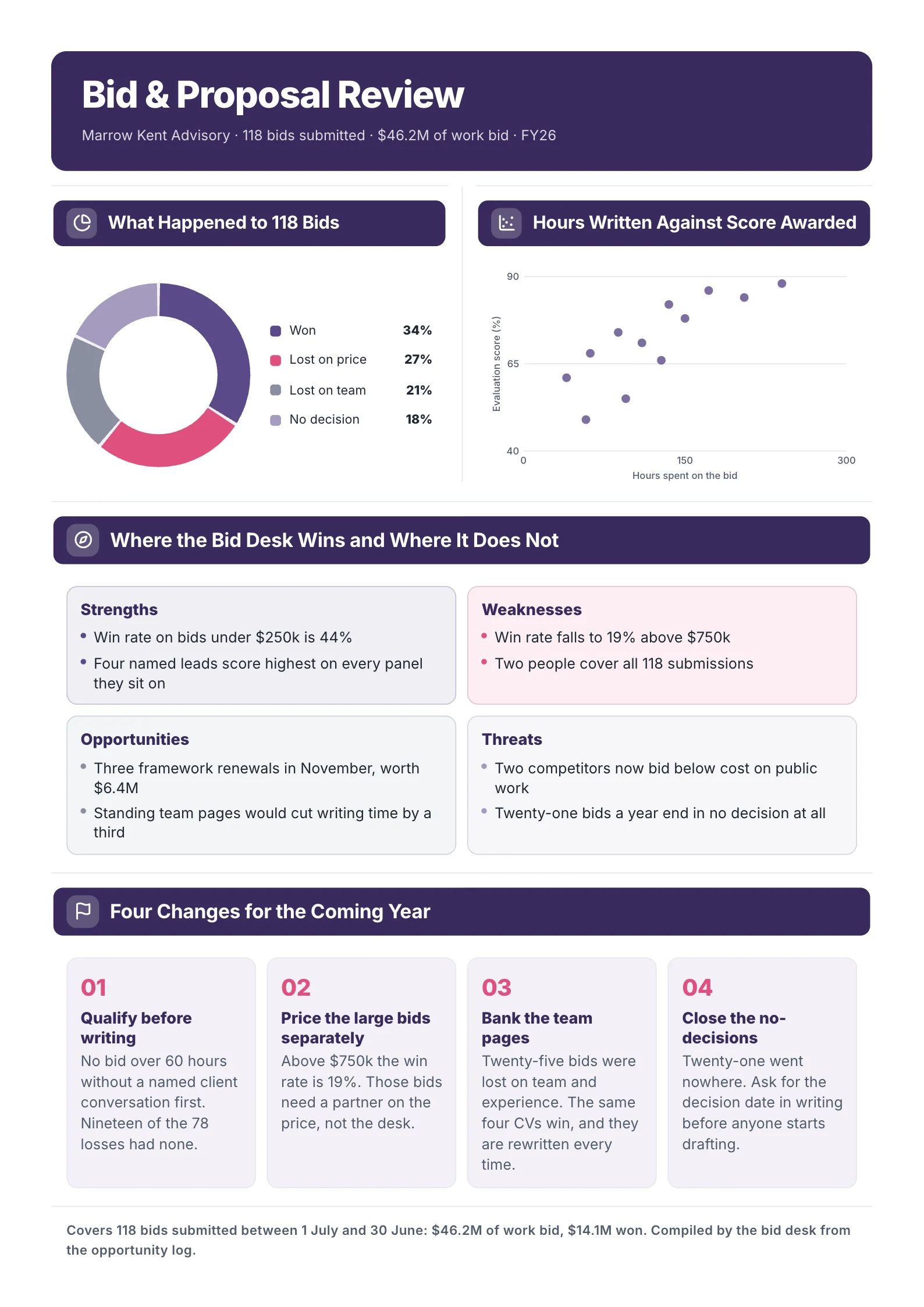
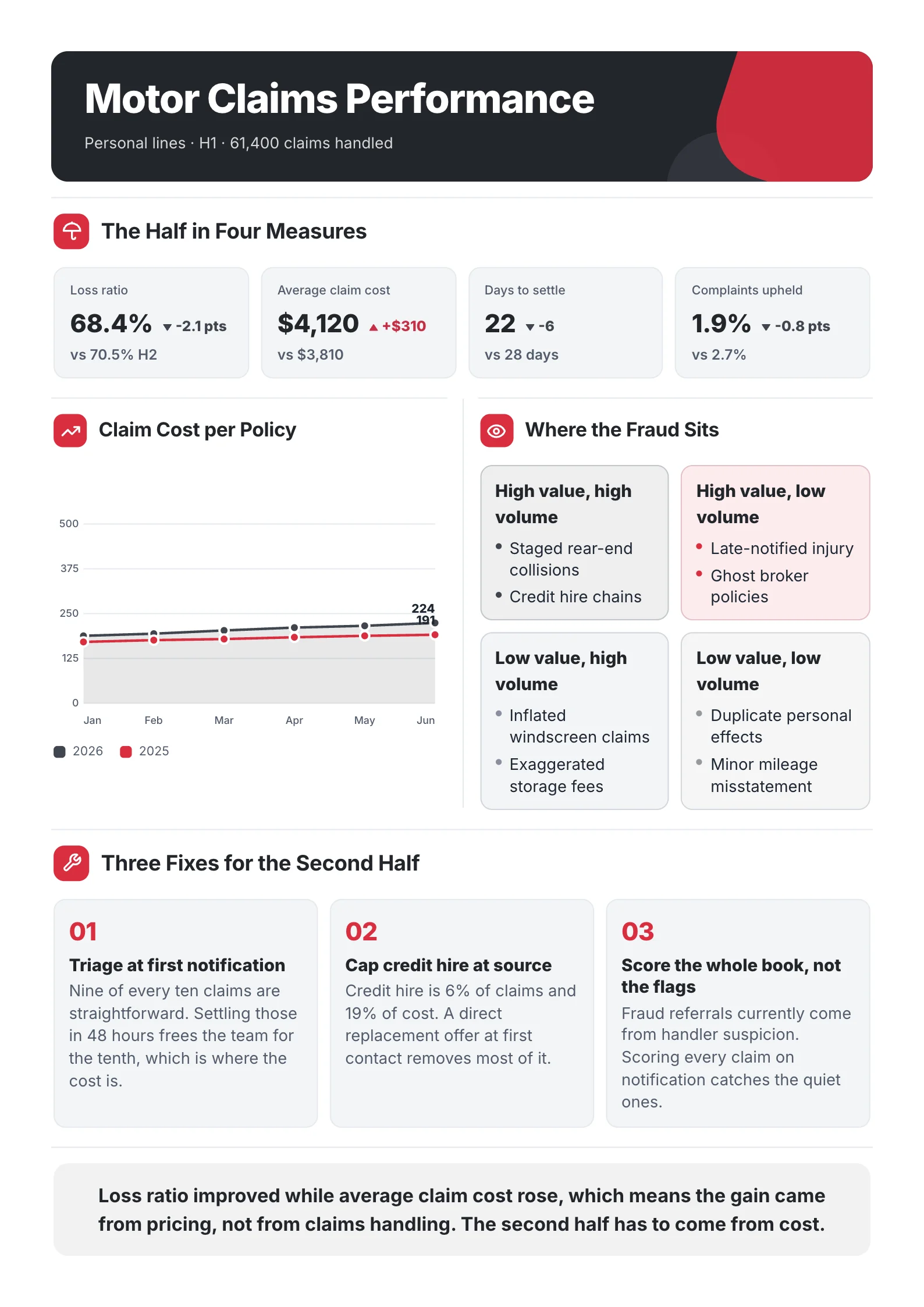
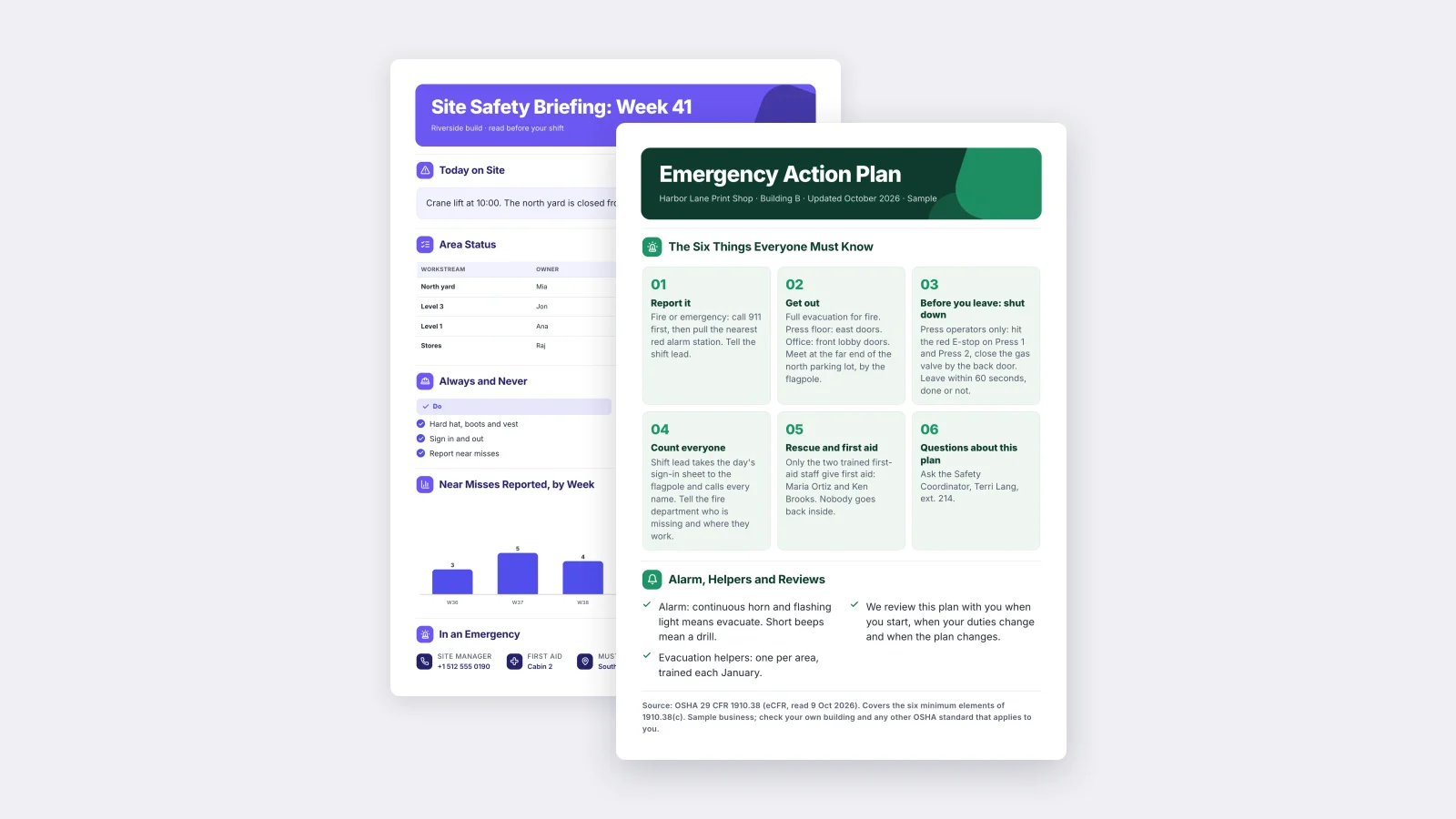
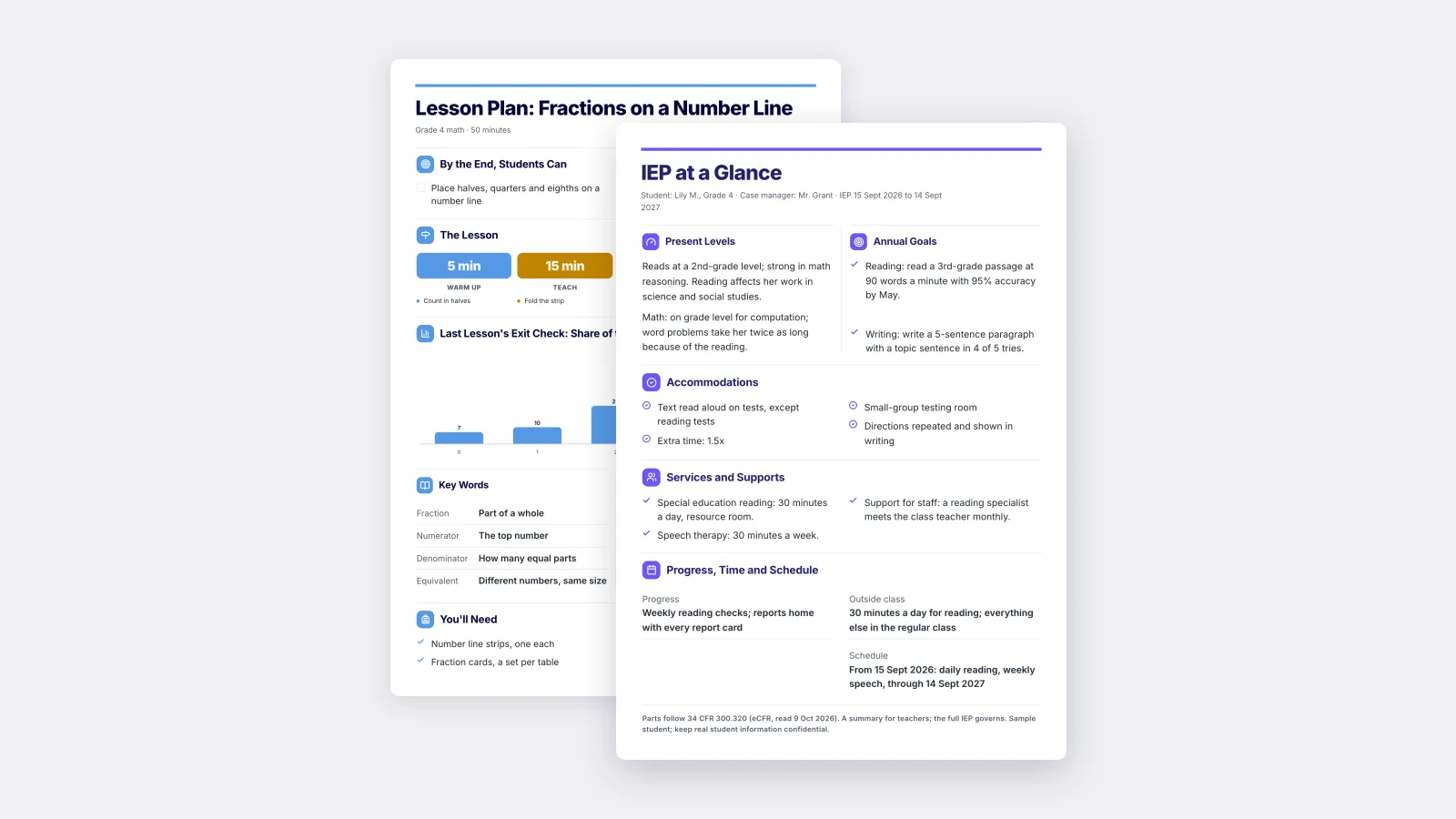
One‑Pager examples
Real One-Pagers made with MakeOnepagers. Open any one to edit it as your own.
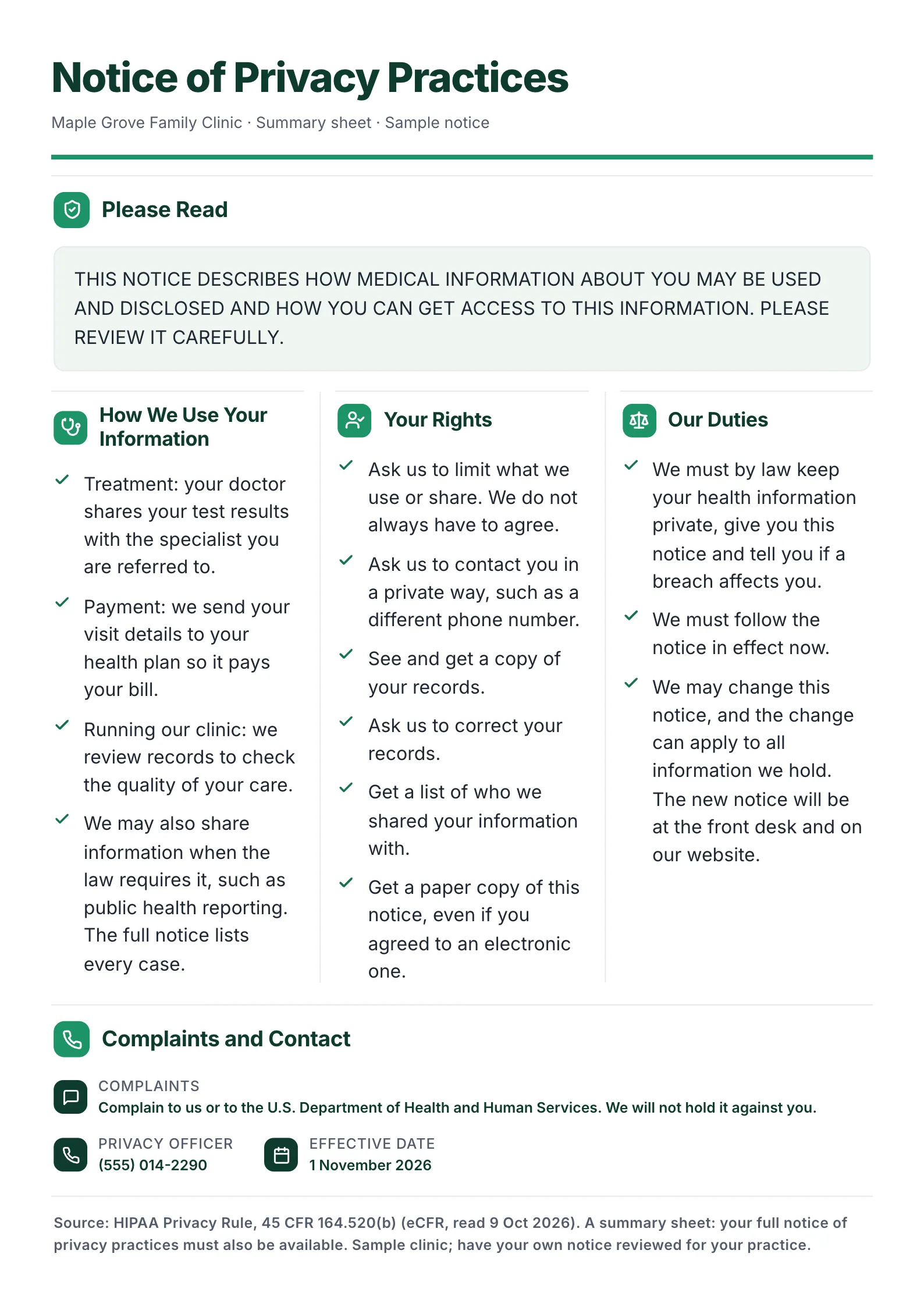 Privacy Notice SummaryEdit for free(opens in a new tab)
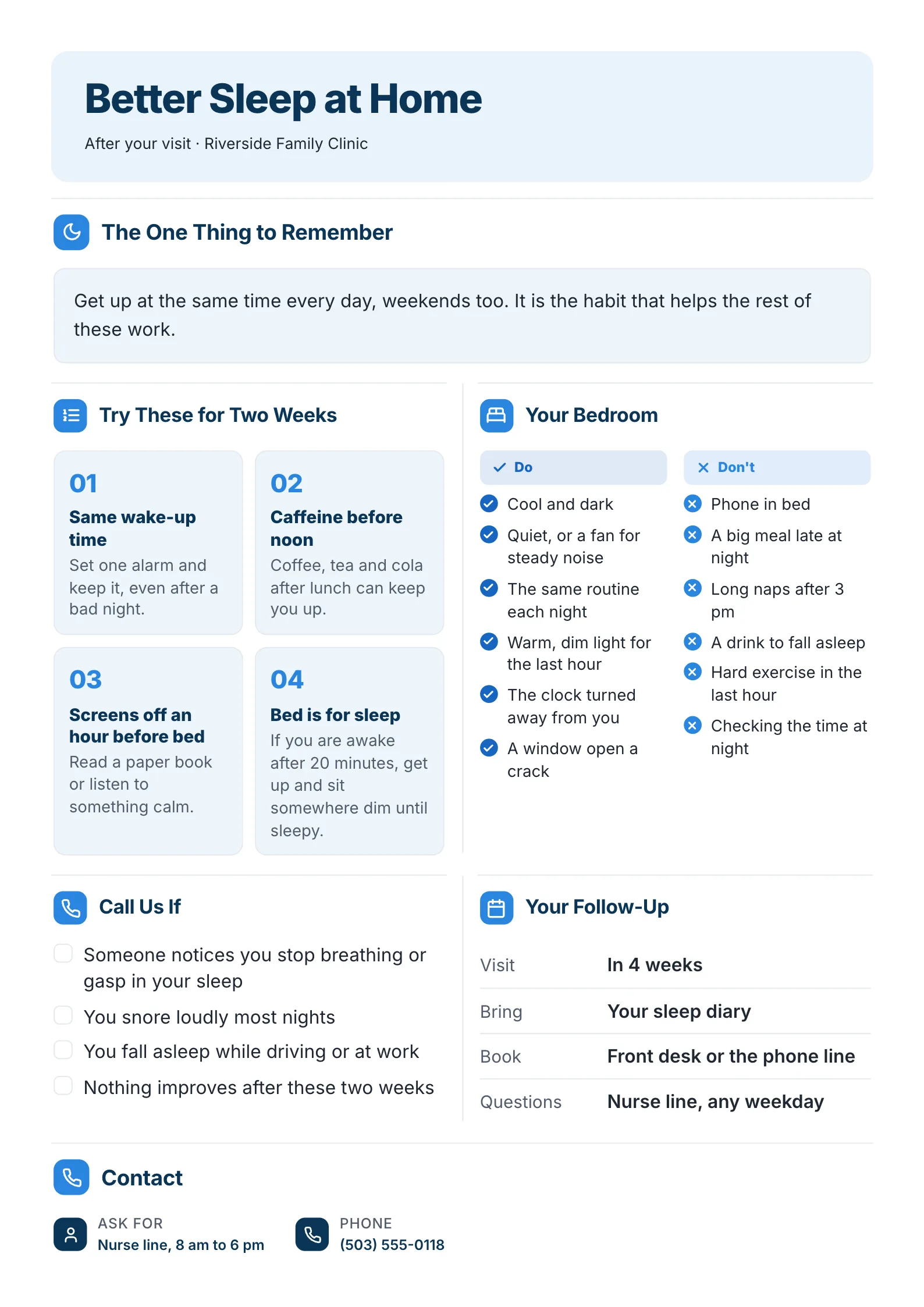 Patient Education SheetEdit for free(opens in a new tab)
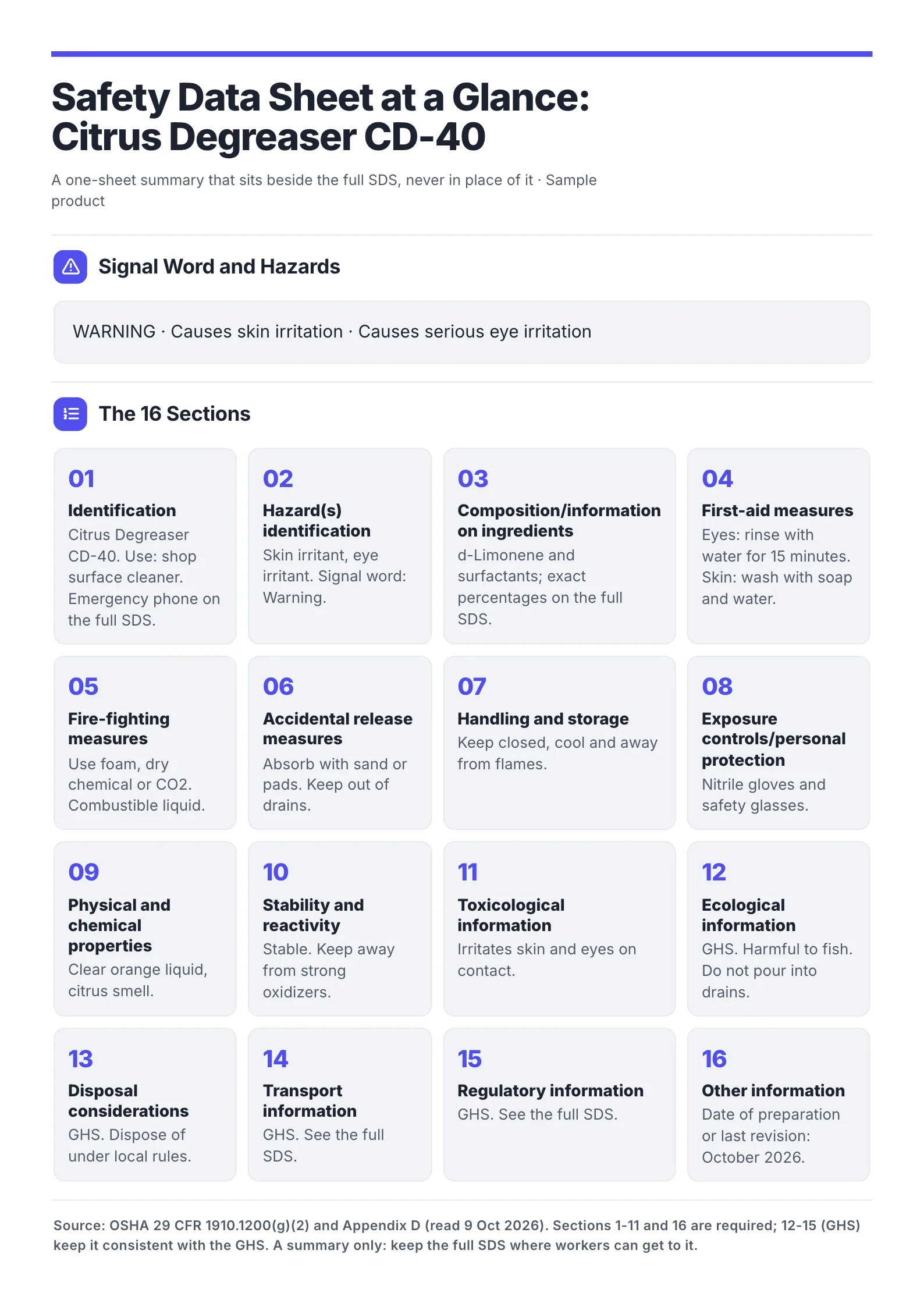 Safety Data Sheet SummaryEdit for free(opens in a new tab)
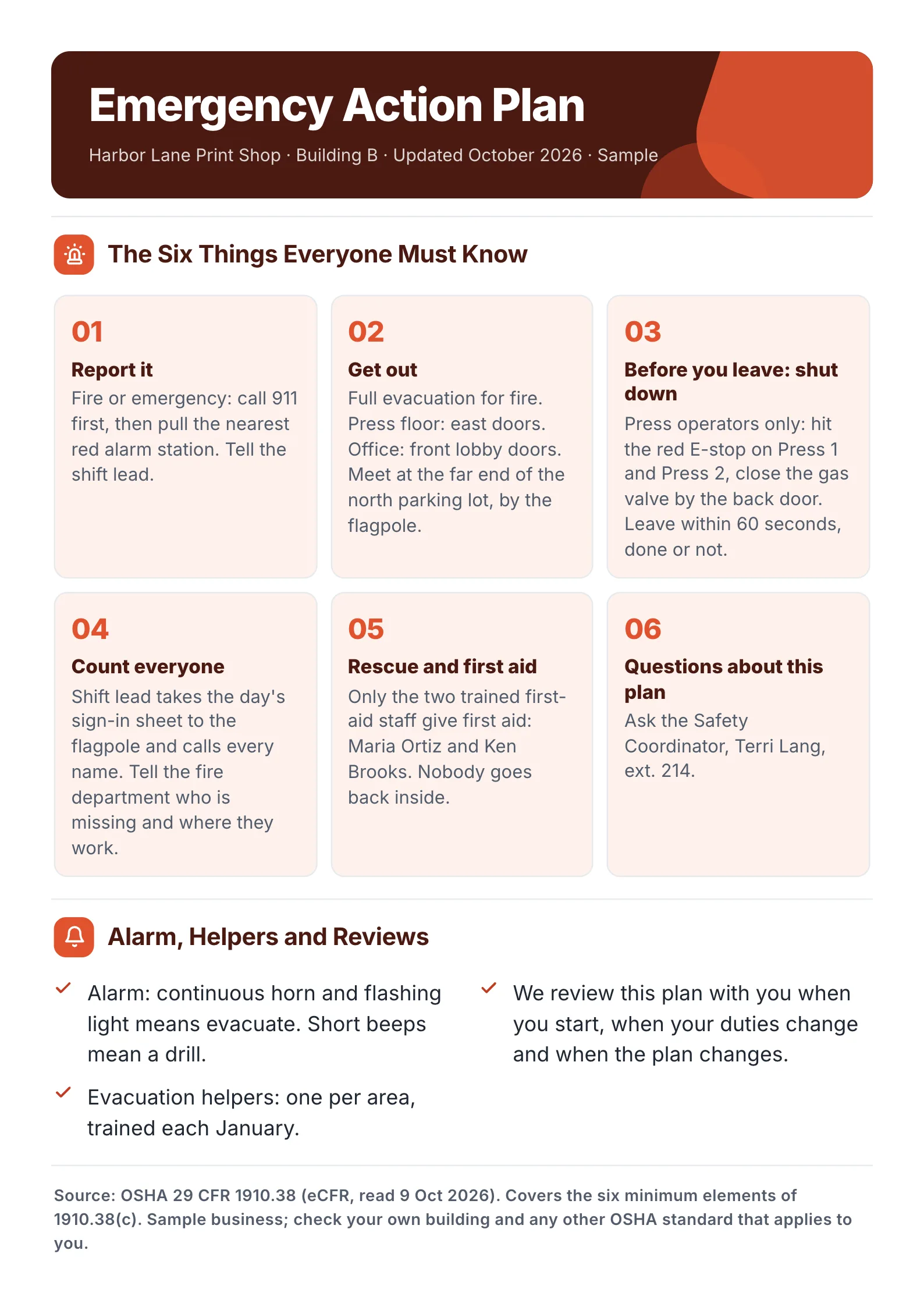 Emergency Action PlanEdit for free(opens in a new tab)
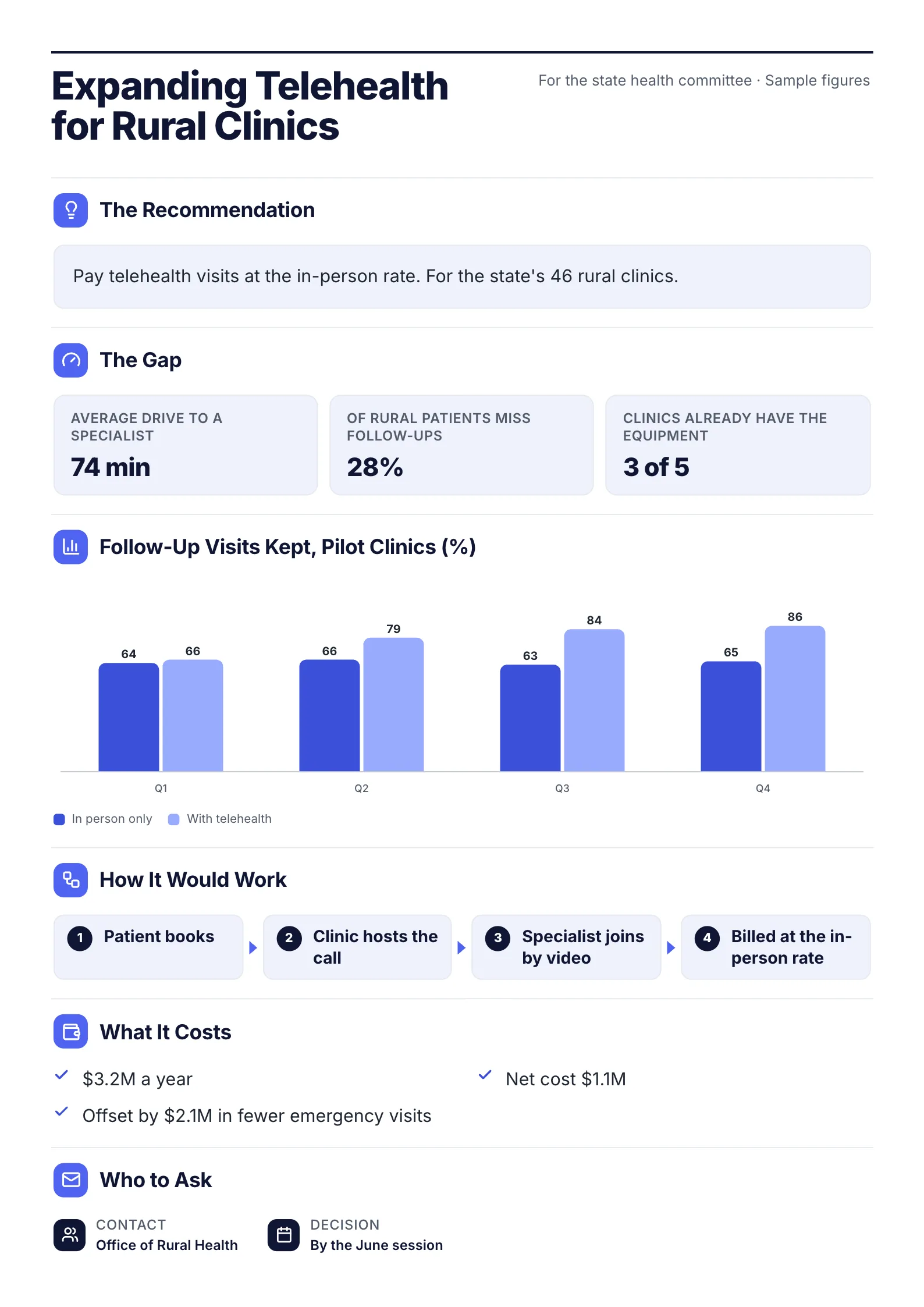 Policy Brief: Rural TelehealthEdit for free(opens in a new tab)
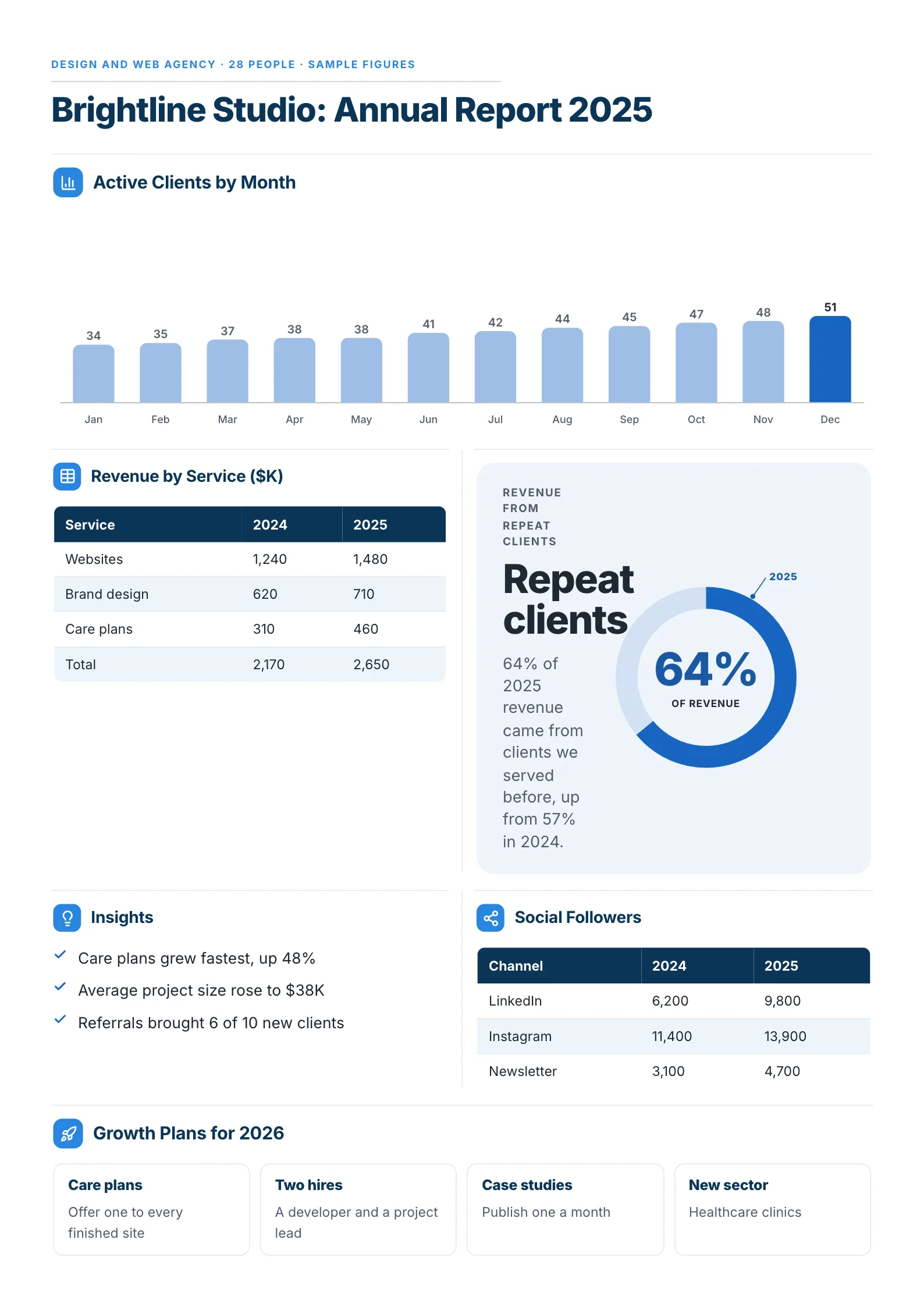 Annual Report SummaryEdit for free(opens in a new tab)
Why PDF accessibility matters
A PDF can look perfect and still be unreadable to someone using a screen reader. What a screen reader reads is not the picture on the page but the tags behind it: which text is a heading, which is a list, what a chart shows, and in what order to read it all. If the tags are missing or wrong, the reader hears a flat stream of words and numbers, or nothing.
For US federal agencies, Section 508 of the Rehabilitation Act requires accessible electronic documents, which is why Section508.gov publishes these checks. Many states, schools, hospitals and contractors follow the same checks.
The federal PDF check sheet, in plain words
The check sheet groups its checks into six areas. Here is each check, in the order the sheet gives it.
1. Preconditions
| Check | What passes |
|---|---|
| The PDF is tagged | Document properties say "Tagged PDF: Yes" |
| It is not an image or scanned page | The text can be selected and read, not just seen |
| Portfolios and attachments | Every attached file was tested too |
| Scripts | Any script was checked by hand |
2. Document properties
| Check | What passes |
|---|---|
| A descriptive file name | The name says what the document is |
| The title shows when it opens | The initial view is set to show the document title |
| Assistive technology can read the content | "Content copying for accessibility" is allowed |
| The language is set | A language appears in the document's reading options |
3. Structure tags
| Check | What passes |
|---|---|
| Tags follow the visual order | All meaningful content is tagged, in the order a reader would read it |
| Decoration is marked as decoration | Decorative lines, shapes and icons are tagged "Artifact" |
| Headers and footers | Anything vital in them is also in the tagged text |
| Headings are headings | Heading tags match the visual outline |
| Lists are lists | A list tag with list item tags inside |
| Other languages are marked | A passage in another language carries its own language |
4. Objects
| Check | What passes |
|---|---|
| Images and charts have alternative text | Each figure has text describing its purpose |
| Data tables are real tables | Table, header cell (TH) and data cell (TD) tags, with headers linked to their cells |
| Links describe where they go | Link text names the destination or purpose |
| Form fields have tooltips | Each field's tooltip matches its label |
5. Color and contrast
| Check | What passes |
|---|---|
| Color is not the only signal | Any meaning shown by color is also in the text |
| Contrast | Text passes a color contrast analyzer |
6. Miscellaneous
| Check | What passes |
|---|---|
| Audio, video and multimedia | Transcripts, descriptions and captions are complete |
| No flashing content | Nothing flashes |
| An accessible alternative | If one is offered, it is equivalent and up to date |
We ran the checklist on our own PDF
On 12 October 2026 we exported a one-page PDF through the same export route our Download button uses, on US Letter. The document is a one-page impact report for a sample food bank: a title, a headline number in a ring chart, three more charts, a section icon beside each heading, a quote and a short list. We then read the file with standard PDF tools and counted its tags.
| Check | What we found | Result |
|---|---|---|
| Tagged | "Tagged: yes" | Pass |
| Not image-only | All text extracts as text, fonts embedded with Unicode mapping | Pass |
| Descriptive file name | The download is named after the document title and date | Pass |
| Title shows when it opens | The display-title setting is on | Pass |
| Content copying allowed | The file is not encrypted | Pass |
| Language set | English | Pass |
| Correct document title | The title field holds our website's title, not the document's | Fail |
| Headings tagged | 0 heading tags. Every element is tagged as generic "NonStruct" (79 of them) | Fail |
| Lists tagged | 0 list item tags, though the document has a list | Fail |
| Charts have alternative text | 0 figure tags and 0 alternative text entries for 4 charts | Fail |
| Decoration marked as artifact | 0 artifact tags, though every section heading has a decorative icon | Fail |
| Data tables, links, forms, media | This document has none | Not applicable |
| Reading order, contrast, color | Not testable by script; need a person with a screen reader and a contrast analyzer | Not tested |
6 passed and 5 failed. The pattern is common in PDFs made by printing a web page: the file is tagged, so a quick check says yes, but the tags carry no meaning. A screen reader user gets no headings to jump between, no list to count, and nothing for the charts. And the title it announces is the wrong one.
We have filed the fix for our export: the document's own title, heading tags, list tags and chart descriptions. Until it ships, if you need a fully accessible PDF from any tool, run the checks below in a PDF editor before you publish.
How to check a PDF yourself in 10 minutes
- Open the document properties. Check the title, that it is tagged, and the language.
- Try to select the text. If you cannot, it is a scanned image and needs text recognition first.
- Run the editor's accessibility checker, if it has one. It catches missing tags, alt text and language.
- Open the tags panel and read the outline. Headings should look like the document's outline. Lists should be lists.
- Look at every chart and picture. Each needs alternative text that says what it shows, with the numbers that matter.
- Check any table for header cells.
- Read it with a screen reader for one minute. Your computer has one built in. If the order is wrong, you will hear it.
How to write alternative text for a chart
A chart's alternative text should give the reader what a sighted reader gets at a glance: what is measured, the trend, and the one or two numbers that matter.
| Weak | Better |
|---|---|
| "Bar chart" | "Bar chart of meals served by quarter, in thousands: 62, 71, 80 and 96, rising every quarter" |
| "Pie chart of spending" | "Where each dollar goes: 72 cents to food, 14 to delivery, 9 to running costs and 5 to raising funds" |
If the numbers are already in the text beside the chart, the alternative text can be shorter and point to them.
Accessible PDF mistakes
| Mistake | Fix |
|---|---|
| "It's tagged, so it's accessible" | Read the tags. Generic tags pass the first check and fail the rest |
| The title field says the app or template name | Set the title to the document's own title |
| Bold text instead of heading tags | Tag headings as headings, in outline order |
| Charts with no alternative text | Describe what is measured, the trend and the key numbers |
| Meaning shown only by color | Add the word or number: "late", "12%" |
| Scanned pages | Run text recognition, then tag the result |
Make your PDF accessible
Before you publish a PDF, from any tool, run the 7-step check above, fix the title and language in its properties, and add alternative text to every chart. If you are making a one-page document, start from a clear outline of headings and short lists, as in the patient education sheet template, which makes the tags easier to get right, and then test the export with a screen reader before you share it. Every layout in the MakeOnepagers template gallery starts from that kind of outline, and the free AI One-Pager generator turns a long file into one.
Frequently asked questions
What makes a PDF accessible?
Real tags that match its structure, a document title and language, headings and lists tagged as such, alternative text on images and charts, table header cells, a logical reading order, enough contrast, and meaning that does not depend on color alone.
Is a tagged PDF automatically accessible?
No. Tagged means the file has a structure tree. Our own test PDF was tagged, yet every element in it was a generic tag, so it had no headings, no lists and no chart descriptions for a screen reader.
What is the Section 508 PDF checklist?
The PDF Test Check Sheet published on Section508.gov from the federal Accessible Electronic Documents Community of Practice, with checks for preconditions, document properties, structure tags, objects, color and contrast, and multimedia. Federal agencies use it to record results.
How do I check if a PDF is accessible for free?
Look at its properties for the title, tags and language, try selecting the text, and listen to it with your computer's built-in screen reader. A full test of tags and alt text needs a PDF editor with an accessibility checker.
Does an accessible PDF have to be ugly?
No. Design and accessibility live in different layers. The look is what is printed; accessibility is the tags and text behind it. A designed One-Pager can pass every check if the export carries its structure.